#### Shell

```
npx create-next-app@latest ably-pubsub-nextjs
cd ably-pubsub-nextjs
```
### Update globals.css
Replace the contents of `src/app/globals.css` with the following to reset browser defaults and ensure consistent font sizing across all elements including inputs and buttons:
#### Css

```
/* src/app/globals.css */
html {
  height: 100%;
}

html,
body {
  max-width: 100vw;
  overflow-x: hidden;
}

body {
  min-height: 100%;
  display: flex;
  flex-direction: column;
  color: #171717;
  background: #ffffff;
  font-family: Arial, Helvetica, sans-serif;
  font-size: 15px;
  -webkit-font-smoothing: antialiased;
  -moz-osx-font-smoothing: grayscale;
}

*,
input,
button {
  box-sizing: border-box;
  padding: 0;
  margin: 0;
  font-size: inherit;
  font-family: inherit;
}
```
### Install Ably Pub/Sub JavaScript SDK
Install the Ably Pub/Sub JavaScript SDK:
#### Shell

```
npm install ably
```
### (Optional) Install Ably CLI
Use the [Ably CLI](https://ably.com/docs/platform/tools/cli.md?source=llms.txt) as an additional client to quickly test Pub/Sub features. It can simulate other clients by publishing messages, subscribing to channels, and managing presence states.
[`ably init`](https://ably.com/docs/cli/init.md?source=llms.txt) installs the Ably CLI, authenticates, and sets the default app and API key in a single command:
#### Shell

```
npx -p @ably/cli ably init
```
#### React
```
// src/app/AblyProvider.tsx
'use client';
import * as Ably from 'ably';
import { AblyProvider as AblyReactProvider } from 'ably/react';
import { ReactNode, useEffect, useState } from 'react';
export function AblyProvider({ children }: { children: ReactNode }) {
const [client, setClient] = useState(null);
useEffect(() => {
const ably = new Ably.Realtime({
key: 'your-api-key',
clientId: 'my-first-client',
});
setClient(ably);
return () => {
ably.close();
};
}, []);
if (!client) return null;
return {children} ;
}
```
Add the `AblyProvider` to your root layout in `src/app/layout.tsx`:
#### React

```
// src/app/layout.tsx
import type { ReactNode } from 'react';
import { AblyProvider } from './AblyProvider';

export default function RootLayout({ children }: { children: ReactNode }) {
  return (


        {children}


  );
}
```
This establishes a connection to Ably as soon as your application mounts in the browser. While using an API key is fine for this guide, you should use [token authentication](https://ably.com/docs/auth/token.md?source=llms.txt) in production. A [`clientId`](https://ably.com/docs/auth/identified-clients.md?source=llms.txt) identifies the client, which is required for features such as presence.
### Display the connection state
To display the connection state in your UI, create a client component at `src/app/ConnectionState.tsx`:
#### React

```
// src/app/ConnectionState.tsx
'use client';

import { useAbly, useConnectionStateListener } from 'ably/react';
import { useState } from 'react';

export function ConnectionState() {
  const ably = useAbly();
  const [connectionState, setConnectionState] = useState(ably.connection.state);

  useConnectionStateListener((stateChange) => {
    setConnectionState(stateChange.current);
  });

  return (

      Connection: {connectionState}

  );
}
```
Update `src/app/page.tsx` to render the component:
#### React

```
// src/app/page.tsx
import { ConnectionState } from './ConnectionState';

export default function Home() {
  return (

      Ably Pub/Sub - Next.js


  );
}
```
Start the development server:
#### Shell

```
npm run dev
```
Open [http://localhost:3000](http://localhost:3000) and you should see `Connection: connected`. You can also inspect the connection event in the [dev console](https://ably.com/accounts/any/apps/any/console) of your app.
## Step 2: Subscribe to a channel and publish a message
To publish and subscribe to messages on a channel use the `ChannelProvider` component from the Ably Pub/Sub SDK, which scopes child components to a specific channel.
### ChannelProvider
The `ChannelProvider` must be nested inside the `AblyProvider`. Update `src/app/page.tsx` to include the `ChannelProvider`:
#### React

```
// src/app/page.tsx
'use client';

import { ChannelProvider } from 'ably/react';
import { ConnectionState } from './ConnectionState';

export default function Home() {
  return (

      Ably Pub/Sub - Next.js


        {/* Channel-scoped components go here */}


  );
}
```
### Subscribe to a channel
Use the `useChannel()` hook to subscribe to messages on a channel. Create a new file `src/app/Messages.tsx`:
#### React

```
// src/app/Messages.tsx
'use client';

import type { Message } from 'ably';
import { useChannel } from 'ably/react';
import { useState } from 'react';

export function Messages() {
  const [messages, setMessages] = useState([]);

  useChannel('my-first-channel', (message) => {
    setMessages((prev) => [...prev, message]);
  });

  return (

      {messages.map((msg) => (

          {String(msg.data)}

      ))}

  );
}
```
Add `Messages` to `page.tsx` inside the `ChannelProvider`:
#### React

```
// src/app/page.tsx
'use client';

import { ChannelProvider } from 'ably/react';
import { ConnectionState } from './ConnectionState';
import { Messages } from './Messages';

export default function Home() {
  return (

      Ably Pub/Sub - Next.js


  );
}
```
Test it by publishing a message from the CLI:
#### Shell

```
ably channels publish my-first-channel 'Hello from CLI!'
```
### Publish a message
The `useChannel()` hook also returns a `publish` method. Update `src/app/Messages.tsx` to add a message input:
#### React
```
// src/app/Messages.tsx
'use client';
import type { Message } from 'ably';
import { useChannel } from 'ably/react';
import { useState } from 'react';
export function Messages() {
const [messages, setMessages] = useState([]);
const [inputValue, setInputValue] = useState('');
const { publish } = useChannel('my-first-channel', (message) => {
setMessages((prev) => [...prev, message]);
});
const handlePublish = () => {
if (!inputValue.trim()) return;
publish('my-first-messages', inputValue.trim()).catch(console.error);
setInputValue('');
};
return (
{messages.map((msg) => (
{msg.clientId}:
{String(msg.data)}
))}
setInputValue(e.target.value)}
onKeyDown={(e) => e.key === 'Enter' && handlePublish()}
style={{ flex: 1, padding: '10px 12px', border: '1px solid #ccc', borderRadius: '4px', outline: 'none' }}
/>
);
}
```
Type a message and click **Publish** to see it appear in your UI. Open another browser window to see messages arriving in realtime.
## Step 3: Join the presence set
Presence enables clients to be aware of one another on the same channel. You can show who is online, provide status updates, and notify the channel when someone goes offline.
Use the `usePresence()` and `usePresenceListener()` hooks from the Ably Pub/Sub SDK. Create a new file `src/app/PresenceStatus.tsx`:
### React
```
// src/app/PresenceStatus.tsx
'use client';
import { usePresence, usePresenceListener } from 'ably/react';
export function PresenceStatus() {
usePresence('my-first-channel', { status: "I'm here!" });
const { presenceData } = usePresenceListener('my-first-channel');
return (
Present ({presenceData.length})
{presenceData.map((member, idx) => (
-
{member.clientId}
{member.data?.status ? - {member.data.status} : null}
))}
);
}
```
Update `src/app/page.tsx` to include `PresenceStatus` and `ConnectionState` inside the `ChannelProvider`, alongside `Messages`:
### React

```
// src/app/page.tsx
'use client';

import { ChannelProvider } from 'ably/react';
import { ConnectionState } from './ConnectionState';
import { Messages } from './Messages';
import { PresenceStatus } from './PresenceStatus';

export default function Home() {
  return (

      Ably Pub/Sub - Next.js


  );
}
```
Your client ID will appear in the presence list. Join presence via the CLI to see another client joining:
### Shell

```
ably channels presence enter my-first-channel --data '{"status":"From CLI"}'
```
## Step 4: Retrieve message history
Ably stores messages for 2 minutes by default. You can [extend the storage period](https://ably.com/docs/storage-history/storage.md?source=llms.txt) if required.
The `useChannel()` hook returns a `channel` instance. Use its `history()` method to load previously published messages on mount. Update your `Messages` component in `src/app/Messages.tsx` to load history with a `useEffect`:
### React
```
// src/app/Messages.tsx
'use client';
import type { Message } from 'ably';
import { useChannel } from 'ably/react';
import { useEffect, useState } from 'react';
export function Messages() {
const [messages, setMessages] = useState([]);
const [inputValue, setInputValue] = useState('');
const { publish, channel } = useChannel('my-first-channel', (message) => {
setMessages((prev) => [...prev, message]);
});
useEffect(() => {
async function loadHistory() {
const history = await channel.history({ limit: 5 });
setMessages((prev) => [...history.items.reverse(), ...prev]);
}
loadHistory().catch(console.error);
}, [channel]);
const handlePublish = () => {
if (!inputValue.trim()) return;
publish('my-first-messages', inputValue.trim()).catch(console.error);
setInputValue('');
};
return (
{messages.map((msg) => (
{msg.clientId}:
{String(msg.data)}
))}
setInputValue(e.target.value)}
onKeyDown={(e) => e.key === 'Enter' && handlePublish()}
style={{ flex: 1, padding: '10px 12px', border: '1px solid #ccc', borderRadius: '4px', outline: 'none' }}
/>
);
}
```
Publish a few messages first if needed:
### Shell

```
ably channels publish --count 5 my-first-channel "Message number {{.Count}}"
```
Reload the page. The last 5 messages will appear immediately, loaded from history before any new realtime messages arrive.
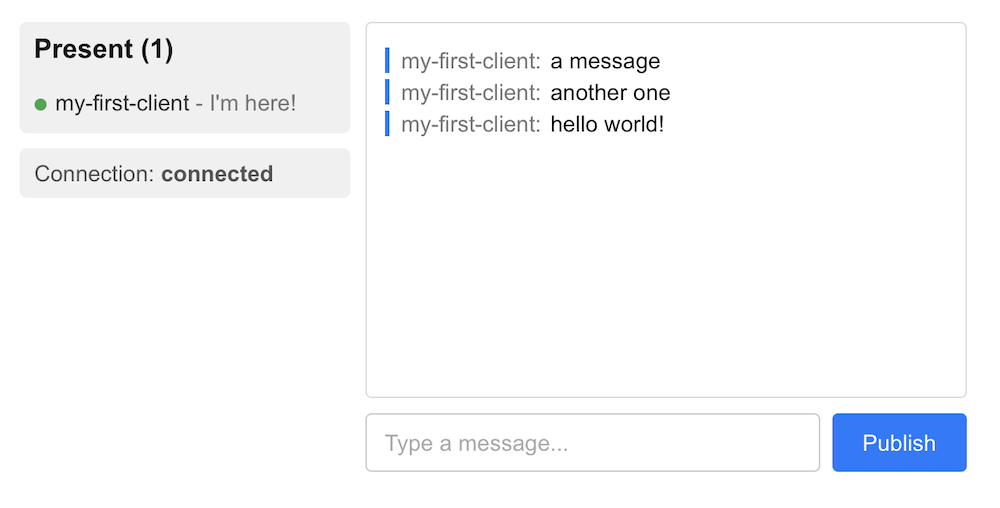
Your completed application should look like this:
## Next steps
Continue to explore the documentation with Next.js as the selected language:
* Understand [token authentication](https://ably.com/docs/auth/token.md?source=llms.txt) before going to production.
* Understand how to effectively [manage connections](https://ably.com/docs/connect.md?source=llms.txt#close?lang=nextjs).
* Explore more [advanced](https://ably.com/docs/pub-sub/advanced.md?source=llms.txt) Pub/Sub concepts.
You can also explore the [Ably CLI](https://www.npmjs.com/package/@ably/cli) further, visit the Pub/Sub [API references](https://ably.com/docs/api/realtime-sdk.md?source=llms.txt), or browse the [Ably Next.js Fundamentals Kit](https://github.com/ably/ably-nextjs-fundamentals-kit) for more complete examples.