# Getting started: Chat with Swift (Callback Approach)
This guide will help you get started with Ably Chat in a new iOS Swift application built with SwiftUI, using a callback-based approach for handling realtime events.
You'll learn how to create chat rooms, send and edit messages, and implement realtime features like typing indicators and presence. You'll also cover message history, reactions, and proper connection management.
## Prerequisites
### Ably
1. [Sign up](https://ably.com/signup) for an Ably account.
2. Create a [new app](https://ably.com/accounts/any/apps/new), and get your first API key. You can use the root API key that is provided by default, within the **API Keys** tab to get started.
### (Optional) Install Ably CLI
Use the [Ably CLI](https://github.com/ably/cli) as an additional client to quickly test chat features. It can simulate other users by sending messages, entering presence, and acting as another user typing a message.
1. Install the Ably CLI:
```shell
npm install -g @ably/cli
```
2. Run the following to log in to your Ably account and set the default app and API key:
```shell
ably login
```
### Create a new project
Create a new iOS project with SwiftUI. For detailed instructions, refer to the [Apple Developer documentation](https://developer.apple.com/documentation/swiftui).
1. Create a new iOS project in Xcode.
2. Select **App** as the template
3. Name the project **ChatExample** and set the bundle identifier to `com.example.chatexample`
4. Set the minimum iOS deployment target to iOS 15.0 or higher
5. Select SwiftUI as the interface and Swift as the language
6. Add the Chat dependency to your project using Swift Package Manager:
- In Xcode, go to **File > Add Package Dependencies**
- Enter the repository URL: `https://github.com/ably/ably-chat-swift`
- Select the latest version and add it to your target
## Step 1: Setting up Ably
Replace the contents of your `ContentView.swift` file with the following code to set up the Ably client, this is using a demo API key, if you wish to use this application with the CLI, change the API key with your own key:
Note that this is for example purposes only. In production, you should use [token authentication](https://ably.com/docs/auth/token.md) to avoid exposing your API keys publicly, the [`clientId`](https://ably.com/docs/auth/identified-clients.md) is used to identify the client:
```swift
import Ably
import AblyChat
import SwiftUI

struct ContentView: View {
    // Can be replaced with your own room name
    private let roomName = "my-first-room"

    @State private var chatClient: ChatClient

    init() {
        let realtimeOptions = ARTClientOptions()
        realtimeOptions.key = "your-api-key" // In production, use token authentication
        realtimeOptions.clientId = "my-first-client"
        let realtime = ARTRealtime(options: realtimeOptions)

        let chatClient = ChatClient(realtime: realtime)
        self._chatClient = State(initialValue: chatClient)
    }

    var body: some View {
        VStack {
            Text("Hello Chat App")
                .font(.headline)
                .padding()
        }
    }
}

#Preview {
    ContentView()
}
```
## Step 2: Connect to Ably
Clients establish a connection with Ably when they instantiate an SDK. This enables them to send and receive messages in realtime across channels.
In your `ContentView.swift` file, add a connection status display using callbacks:
```swift
struct ContentView: View {
    private let roomName = "my-first-room"

    @State private var chatClient: ChatClient
    @State private var connectionStatus = ""

    init() {
        let realtimeOptions = ARTClientOptions()
        realtimeOptions.key = "your-api-key"
        realtimeOptions.clientId = "my-first-client"
        let realtime = ARTRealtime(options: realtimeOptions)

        let chatClient = ChatClient(realtime: realtime)
        self._chatClient = State(initialValue: chatClient)
    }

    var body: some View {
        VStack {
            Text("Connection Status: \(connectionStatus)")
                .font(.caption)
                .padding()

            Text("Hello Chat App")
                .font(.headline)
                .padding()
        }
        .task {
            monitorConnectionStatus()
        }
    }

    private func monitorConnectionStatus() {
        chatClient.connection.onStatusChange { status in
            connectionStatus = "\(status.current)"
        }
    }
}
```
Run your application and you should see the connection status displayed.
## Step 3: Create a room
Now that you have a connection to Ably, you can create a room. Use rooms to separate and organize clients and messages into different topics, or 'chat rooms'. Rooms are the entry point for Chat, providing access to all of its features, such as messages, presence and reactions.
In your project, open `ContentView.swift`, and add room status monitoring using callbacks:
```swift
struct ContentView: View {
    private let roomName = "my-first-room"

    @State private var chatClient: ChatClient
    @State private var connectionStatus = ""
    @State private var roomStatus = ""
    @State private var room: Room?

    init() {
        let realtimeOptions = ARTClientOptions()
        realtimeOptions.key = "your-api-key"
        realtimeOptions.clientId = "my-first-client"
        let realtime = ARTRealtime(options: realtimeOptions)

        let chatClient = ChatClient(realtime: realtime)
        self._chatClient = State(initialValue: chatClient)
    }

    var body: some View {
        VStack {
            Text("Connection Status: \(connectionStatus)")
                .font(.caption)
                .padding(.horizontal)

            Text("Room: \(roomName), Status: \(roomStatus)")
                .font(.caption)
                .padding(.horizontal)

            Text("Hello Chat App")
                .font(.headline)
                .padding()
        }
        .task {
            await setupRoom()
        }
    }

    private func setupRoom() async {
        do {
            let chatRoom = try await chatClient.rooms.get(named: roomName)
            try await chatRoom.attach()
            self.room = chatRoom

            monitorConnectionStatus()
            monitorRoomStatus(room: chatRoom)
        } catch {
            print("Failed to setup room: \(error)")
        }
    }

    private func monitorConnectionStatus() {
        chatClient.connection.onStatusChange { status in
            connectionStatus = "\(status.current)"
        }
    }

    private func monitorRoomStatus(room: Room) {
        room.onStatusChange { status in
            roomStatus = "\(status.current)"
        }
    }
}
```
The above code creates a room with the name `my-first-room` and sets up listeners to monitor both connection and room status. It displays the room name and current status in the UI.
## Step 4: Send a message
Messages are how your clients interact with one another.
In your project, open `ContentView.swift`, and add message functionality using callbacks:
```swift
struct ContentView: View {
    private let roomName = "my-first-room"

    @State private var chatClient: ChatClient
    @State private var connectionStatus = ""
    @State private var roomStatus = ""
    @State private var room: Room?
    @State private var messages: [Message] = []
    @State private var newMessage = ""

    init() {
        let realtimeOptions = ARTClientOptions()
        realtimeOptions.key = "your-api-key"
        realtimeOptions.clientId = "my-first-client"
        let realtime = ARTRealtime(options: realtimeOptions)

        let chatClient = ChatClient(realtime: realtime)
        self._chatClient = State(initialValue: chatClient)
    }

    var body: some View {
        VStack {
            // Status bar
            VStack {
                Text("Connection: \(connectionStatus)")
                Text("Room: \(roomName), Status: \(roomStatus)")
            }
            .font(.caption)
            .padding(.horizontal)

            // Messages list
            List(messages.reversed(), id: \.id) { message in
                VStack(alignment: .leading, spacing: 4) {
                    HStack {
                        Text("\(message.clientID): \(message.text)")
                            .font(.body)
                        Spacer()
                    }
                    Text(formatTimestamp(message.timestamp))
                        .font(.caption)
                        .foregroundColor(.gray)
                }
                .padding(.vertical, 2)
            }
            .listStyle(.plain)

            // Message input
            HStack {
                TextField("Type a message...", text: $newMessage)
                    .textFieldStyle(RoundedBorderTextFieldStyle())

                Button("Send") {
                    Task {
                        await sendMessage()
                    }
                }
                .disabled(newMessage.isEmpty)
            }
            .padding()
        }
        .task {
            await setupRoom()
        }
    }

    private func setupRoom() async {
        do {
            let chatRoom = try await chatClient.rooms.get(named: roomName)
            try await chatRoom.attach()
            self.room = chatRoom

            setupMessages(room: chatRoom)
            monitorConnectionStatus()
            monitorRoomStatus(room: chatRoom)
        } catch {
            print("Failed to setup room: \(error)")
        }
    }

    private func setupMessages(room: Room) {
        room.messages.subscribe { event in
            withAnimation {
                switch event.type {
                case .created:
                    // Check if the incoming message is correctly ordered
                    if !messages.isEmpty && messages[messages.count - 1].serial > event.message.serial {
                      // If the message arrived out of order - you should find the correct insertion point based on serial
                      // This is omitted for brevity, but production code should maintain serial order
                    }
                    messages.append(event.message)
                case .updated:
                    if let index = messages.firstIndex(where: { $0.id == event.message.id }) {
                        messages[index] = event.message
                    }
                case .deleted:
                    if let index = messages.firstIndex(where: { $0.id == event.message.id }) {
                        messages[index] = event.message
                    }
                }
            }
        }
    }

    private func sendMessage() async {
        guard !newMessage.isEmpty, let room = room else { return }

        do {
            _ = try await room.messages.send(withParams: .init(text: newMessage))
            newMessage = ""
        } catch {
            print("Failed to send message: \(error)")
        }
    }

    private func monitorConnectionStatus() {
        chatClient.connection.onStatusChange { status in
            connectionStatus = "\(status.current)"
        }
    }

    private func monitorRoomStatus(room: Room) {
        room.onStatusChange { status in
            roomStatus = "\(status.current)"
        }
    }

    private func formatTimestamp(_ timestamp: Date?) -> String {
        let formatter = DateFormatter()
        formatter.timeStyle = .medium
        guard let timestamp else { return "" }
        return formatter.string(from: timestamp)
    }
}
```
The UI should automatically render the new component, and you should be able to send messages to the room.
Type a message in the input box and click the send button. You'll see the message appear in the chat list.
You can also use the Ably CLI to send a message to the room from another environment:
```shell
ably rooms messages send my-first-room 'Hello from CLI!'
```
You'll see the message in your app's chat list. If you have sent a message via CLI, it should appear from a different client ID than the one you sent from the app.
## Step 5: Edit a message
If your client makes a typo, or needs to update their original message then they can edit it. To do this, you can extend the functionality to allow updating of messages.
Update your `ContentView.swift` to add message editing capability:
```swift
struct ContentView: View {
    private let roomName = "my-first-room"

    @State private var chatClient: ChatClient
    @State private var connectionStatus = ""
    @State private var roomStatus = ""
    @State private var room: Room?
    @State private var messages: [Message] = []
    @State private var newMessage = ""
    @State private var editingMessage: Message?

    init() {
        let realtimeOptions = ARTClientOptions()
        realtimeOptions.key = "your-api-key"
        realtimeOptions.clientId = "my-first-client"
        let realtime = ARTRealtime(options: realtimeOptions)

        let chatClient = ChatClient(realtime: realtime)
        self._chatClient = State(initialValue: chatClient)
    }

    private var sendButtonTitle: String {
        editingMessage != nil ? "Update" : "Send"
    }

    var body: some View {
        VStack {
            // Status bar
            VStack {
                Text("Connection: \(connectionStatus)")
                Text("Room: \(roomName), Status: \(roomStatus)")
            }
            .font(.caption)
            .padding(.horizontal)

            // Messages list
            List(messages.reversed(), id: \.id) { message in
                MessageRowView(
                    message: message,
                    isEditing: editingMessage?.id == message.id,
                    onEdit: {
                        editingMessage = message
                        newMessage = message.text
                    }
                )
                .buttonStyle(.plain)
            }
            .listStyle(.plain)

            // Message input
            HStack {
                TextField("Type a message...", text: $newMessage)
                    .textFieldStyle(RoundedBorderTextFieldStyle())

                Button(sendButtonTitle) {
                    Task {
                        if editingMessage != nil {
                            await updateMessage()
                        } else {
                            await sendMessage()
                        }
                    }
                }
                .disabled(newMessage.isEmpty)

                if editingMessage != nil {
                    Button("Cancel") {
                        editingMessage = nil
                        newMessage = ""
                    }
                    .foregroundColor(.red)
                }
            }
            .padding()
        }
        .task {
            await setupRoom()
        }
    }

    private func sendMessage() async {
        guard !newMessage.isEmpty, let room = room else { return }

        do {
            _ = try await room.messages.send(withParams: .init(text: newMessage))
            newMessage = ""
        } catch {
            print("Failed to send message: \(error)")
        }
    }

    private func updateMessage() async {
        guard !newMessage.isEmpty, let editingMessage = editingMessage, let room = room else { return }

        do {
            let updateMessageParams = UpdateMessageParams(text: newMessage)
            _ = try await room.messages.update(withSerial: editingMessage.serial, params: updateMessageParams, details: nil)
            self.editingMessage = nil
            newMessage = ""
        } catch {
            print("Failed to update message: \(error)")
        }
    }

    // ... rest of the previous functions remain the same ...
}

struct MessageRowView: View {
    let message: Message
    let isEditing: Bool
    let onEdit: () -> Void

    var body: some View {
        VStack(alignment: .leading, spacing: 4) {
            HStack {
                VStack(alignment: .leading) {
                    Text("\(message.clientID): \(message.text)")
                        .font(.body)
                        .background(isEditing ? Color.blue.opacity(0.1) : Color.clear)
                    Text(formatTimestamp(message.timestamp))
                        .font(.caption)
                        .foregroundColor(.gray)
                }
                Spacer()
                Button("Edit") {
                    onEdit()
                }
                .font(.caption)
                .foregroundColor(.blue)
            }
        }
        .padding(.vertical, 2)
    }

    private func formatTimestamp(_ timestamp: Date?) -> String {
        let formatter = DateFormatter()
        formatter.timeStyle = .medium
        guard let timestamp else { return "" }
        return formatter.string(from: timestamp)
    }
}
```
When you tap the "Edit" button next to a message, you can modify the text and it will send the updated message contents to the room.
## Step 6: Message history and continuity
Ably Chat enables you to retrieve previously sent messages in a room. This is useful for providing conversational context when a user first joins a room, or when they subsequently rejoin it later on. The message subscription provides `historyBeforeSubscribe()` to enable this functionality. This method returns a paginated response, which can be queried further to retrieve the next set of messages.
Update the `setupMessages` function in your `ContentView.swift` to retrieve previous messages:
```swift
private func setupMessages(room: Room) {
    let subscription = room.messages.subscribe { event in
        withAnimation {
            switch event.type {
            case .created:
                // Only add if not already in the list
                if !messages.contains(where: { $0.id == event.message.id }) {
                    messages.append(event.message)
                }
            case .updated:
                if let index = messages.firstIndex(where: { $0.id == event.message.id }) {
                    messages[index] = event.message
                }
            case .deleted:
                if let index = messages.firstIndex(where: { $0.id == event.message.id }) {
                    messages[index] = event.message
                }
            }
        }
    }

    // Get previous messages after subscribing
    Task {
        do {
            let previousMessages = try await subscription.historyBeforeSubscribe(.init())
            await MainActor.run {
                messages.append(contentsOf: previousMessages.items)
            }
        } catch {
            print("Failed to get previous messages: \(error)")
        }
    }
}
```
The above code will retrieve previous messages when the component loads, and set them in the state.
Do the following to test this out:
1. Use the Ably CLI to simulate sending some messages to the room from another client.
2. Restart the app, this will cause the message history to load.
3. You'll see the previous messages appear in the chat list.
## Step 7: Display who is present in the room
Display the online status of clients using the presence feature. This enables clients to be aware of one another if they are present in the same room. You can then show clients who else is online, provide a custom status update for each, and notify the room when someone enters it, or leaves it, such as by going offline.
Update your `ContentView.swift` to add presence functionality using callbacks:
```swift
struct ContentView: View {
    private let roomName = "my-first-room"

    @State private var chatClient: ChatClient
    @State private var connectionStatus = ""
    @State private var roomStatus = ""
    @State private var room: Room?
    @State private var messages: [Message] = []
    @State private var newMessage = ""
    @State private var editingMessage: Message?
    @State private var presenceMembers: [String] = []

    // ... initialization code remains the same ...

    var body: some View {
        VStack {
            // Status bar
            VStack {
                Text("Connection: \(connectionStatus)")
                Text("Room: \(roomName), Status: \(roomStatus)")
                Text("Online: \(presenceMembers.count)")
            }
            .font(.caption)
            .padding(.horizontal)

            // ... rest of the UI remains the same ...
        }
        .task {
            await setupRoom()
        }
    }

    private func setupRoom() async {
        do {
            let chatRoom = try await chatClient.rooms.get(named: roomName)
            try await chatRoom.attach()
            self.room = chatRoom

            // Enter presence with data
            try await chatRoom.presence.enter(withData: ["status": "📱 Online"])

            setupMessages(room: chatRoom)
            setupPresence(room: chatRoom)
            monitorConnectionStatus()
            monitorRoomStatus(room: chatRoom)
        } catch {
            print("Failed to setup room: \(error)")
        }
    }

    private func setupPresence(room: Room) {
        // Listen for presence events
        room.presence.subscribe { event in
            Task {
                await updatePresenceMembers()
            }
        }

        // Update initial presence
        Task {
            await updatePresenceMembers()
        }
    }

    private func updatePresenceMembers() async {
        guard let room = room else { return }

        do {
            let members = try await room.presence.get()
            await MainActor.run {
                presenceMembers = members.compactMap { $0.clientID }
            }
        } catch {
            print("Failed to get presence members: \(error)")
        }
    }

    // ... rest of the functions remain the same ...
}
```
You'll now see your current client ID in the count of present users.
You can also use the Ably CLI to enter the room from another client by running the following command:
```shell
ably rooms presence enter my-first-room
```
## Step 8: Send a reaction
Clients can send a reaction to a room to show their sentiment for what is happening, such as a point being scored in a sports game. These are short-lived (ephemeral) and are not stored in the room history.
Update your `ContentView.swift` to add reaction functionality using callbacks:
```swift
struct ContentView: View {
    private let roomName = "my-first-room"

    @State private var chatClient: ChatClient
    @State private var connectionStatus = ""
    @State private var roomStatus = ""
    @State private var room: Room?
    @State private var messages: [Message] = []
    @State private var newMessage = ""
    @State private var editingMessage: Message?
    @State private var presenceMembers: [String] = []
    @State private var recentReactions: [String] = []

    // ... initialization code remains the same ...

    var body: some View {
        VStack {
            // Status bar
            VStack {
                Text("Connection: \(connectionStatus)")
                Text("Room: \(roomName), Status: \(roomStatus)")
                Text("Online: \(presenceMembers.count)")
            }
            .font(.caption)
            .padding(.horizontal)

            // Reactions bar
            HStack {
                Text("Reactions:")
                    .font(.caption)

                ForEach(["👍", "❤️", "💥", "🚀", "👎"], id: \.self) { emoji in
                    Button(emoji) {
                        Task {
                            await sendReaction(name: emoji)
                        }
                    }
                    .font(.title2)
                }

                Spacer()
            }
            .padding(.horizontal)

            // Recent reactions display
            if !recentReactions.isEmpty {
                HStack {
                    Text("Recent:")
                        .font(.caption)
                    ForEach(recentReactions.suffix(5), id: \.self) { reaction in
                        Text(reaction)
                            .font(.title3)
                    }
                    Spacer()
                }
                .padding(.horizontal)
            }

            // Messages list
            List(messages.reversed(), id: \.id) { message in
                MessageRowView(
                    message: message,
                    isEditing: editingMessage?.id == message.id,
                    onEdit: {
                        editingMessage = message
                        newMessage = message.text
                    }
                )
                .buttonStyle(.plain)
            }
            .listStyle(.plain)

            // Message input
            HStack {
                TextField("Type a message...", text: $newMessage)
                    .textFieldStyle(RoundedBorderTextFieldStyle())

                Button(sendButtonTitle) {
                    Task {
                        if editingMessage != nil {
                            await updateMessage()
                        } else {
                            await sendMessage()
                        }
                    }
                }
                .disabled(newMessage.isEmpty)

                if editingMessage != nil {
                    Button("Cancel") {
                        editingMessage = nil
                        newMessage = ""
                    }
                    .foregroundColor(.red)
                }
            }
            .padding()
        }
        .task {
            await setupRoom()
        }
    }

    private func setupRoom() async {
        do {
            let chatRoom = try await chatClient.rooms.get(named: roomName)
            try await chatRoom.attach()
            self.room = chatRoom

            // Enter presence with data
            try await chatRoom.presence.enter(withData: ["status": "📱 Online"])

            setupMessages(room: chatRoom)
            setupPresence(room: chatRoom)
            setupReactions(room: chatRoom)
            monitorConnectionStatus()
            monitorRoomStatus(room: chatRoom)
        } catch {
            print("Failed to setup room: \(error)")
        }
    }

    private func setupReactions(room: Room) {
        room.reactions.subscribe { event in
            withAnimation {
                recentReactions.append(event.reaction.name)
                // Keep only last 10 reactions
                if recentReactions.count > 10 {
                    recentReactions.removeFirst()
                }
            }
        }
    }

    private func sendReaction(name: String) async {
        guard let room = room else { return }

        do {
            try await room.reactions.send(withParams: .init(name: name))
        } catch {
            print("Failed to send reaction: \(error)")
        }
    }

    // ... rest of the functions remain the same ...
}
```
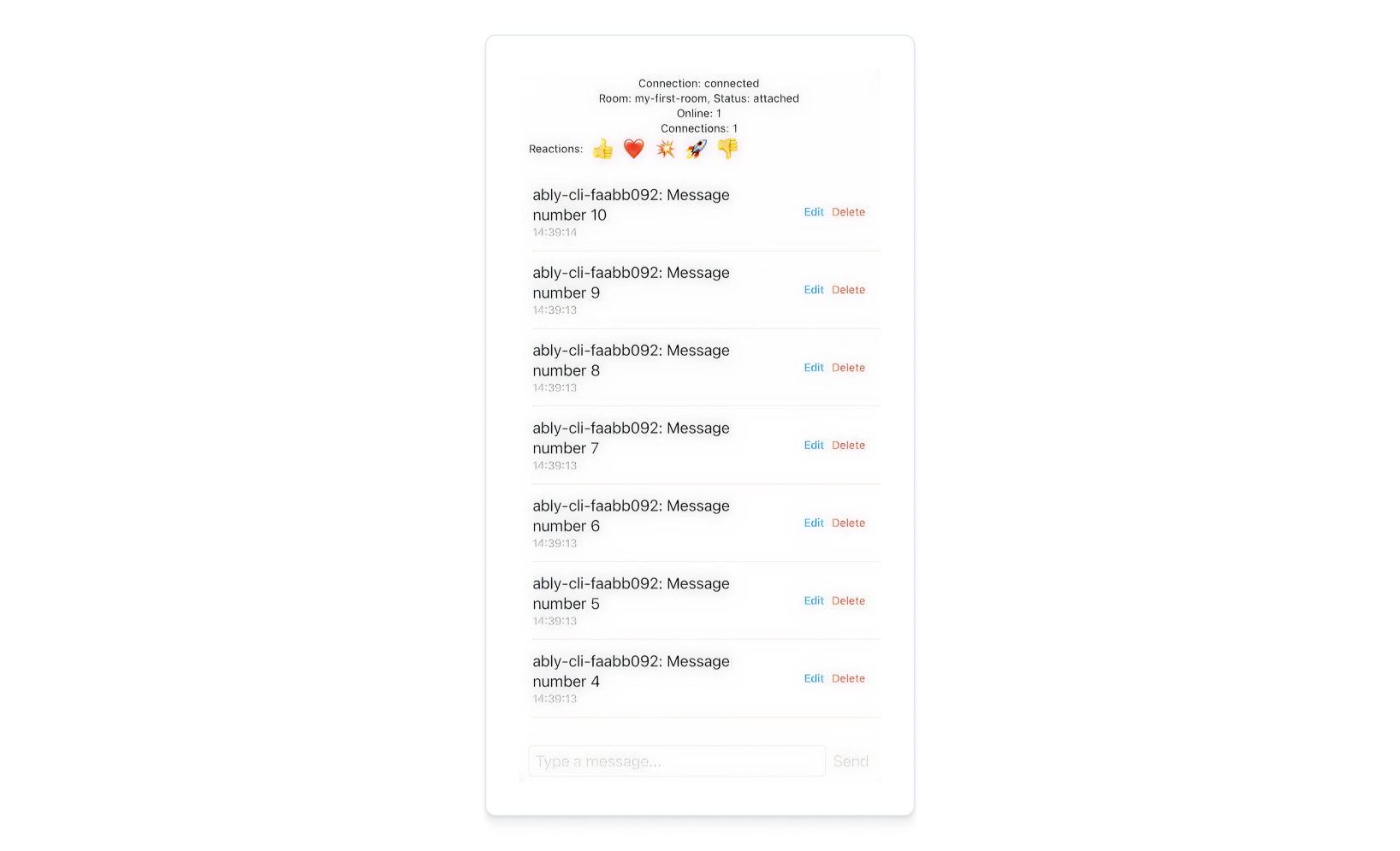
The above code displays a list of reactions that can be sent to the room. When you tap on a reaction, it will send it to the room and display it in the recent reactions area.
You can also send a reaction to the room via the Ably CLI by running the following command:
```shell
ably rooms reactions send my-first-room 👍
```
## Step 9: Show typing indicators
Typing indicators let other users know when someone is actively composing a message. This creates a more responsive and interactive chat experience.
Update your `ContentView.swift` to add typing indicators using callbacks:
```swift
struct ContentView: View {
    private let roomName = "my-first-room"

    @State private var chatClient: ChatClient
    @State private var connectionStatus = ""
    @State private var roomStatus = ""
    @State private var room: Room?
    @State private var messages: [Message] = []
    @State private var newMessage = ""
    @State private var editingMessage: Message?
    @State private var presenceMembers: [String] = []
    @State private var recentReactions: [String] = []
    @State private var typingUsers: [String] = []

    // ... initialization and other code remains the same ...

    var body: some View {
        VStack {
            // Status bar remains the same...

            // Reactions bar remains the same...

            // Recent reactions display remains the same...

            // Messages list remains the same...

            // Typing indicator
            if !typingUsers.isEmpty {
                HStack {
                    Text("Typing: \(typingUsers.joined(separator: ", "))...")
                        .font(.caption)
                        .foregroundColor(.gray)
                    Spacer()
                }
                .padding(.horizontal)
            }

            // Message input
            HStack {
                TextField("Type a message...", text: $newMessage)
                    .textFieldStyle(RoundedBorderTextFieldStyle())
                    .onChange(of: newMessage) { _, newValue in
                        Task {
                            await handleTyping(text: newValue)
                        }
                    }

                Button(sendButtonTitle) {
                    Task {
                        if editingMessage != nil {
                            await updateMessage()
                        } else {
                            await sendMessage()
                        }
                    }
                }
                .disabled(newMessage.isEmpty)

                if editingMessage != nil {
                    Button("Cancel") {
                        editingMessage = nil
                        newMessage = ""
                    }
                    .foregroundColor(.red)
                }
            }
            .padding()
        }
        .task {
            await setupRoom()
        }
    }

    private func setupRoom() async {
        do {
            let chatRoom = try await chatClient.rooms.get(named: roomName)
            try await chatRoom.attach()
            self.room = chatRoom

            // Enter presence with data
            try await chatRoom.presence.enter(withData: ["status": "📱 Online"])

            setupMessages(room: chatRoom)
            setupPresence(room: chatRoom)
            setupReactions(room: chatRoom)
            setupTyping(room: chatRoom)
            monitorConnectionStatus()
            monitorRoomStatus(room: chatRoom)
        } catch {
            print("Failed to setup room: \(error)")
        }
    }

    private func setupTyping(room: Room) {
        room.typing.subscribe { typing in
            withAnimation {
                typingUsers = typing.currentlyTyping.filter { $0 != chatClient.clientID }
            }
        }
    }

    private func handleTyping(text: String) async {
        guard let room = room else { return }

        do {
            if text.isEmpty {
                try await room.typing.stop()
            } else {
                try await room.typing.keystroke()
            }
        } catch {
            print("Failed to handle typing: \(error)")
        }
    }

    // ... rest of the functions remain the same ...
}
```
Now when you type in the message field, other users will see a typing indicator. The indicator automatically stops when you stop typing or send a message.
## Step 10: Display occupancy information
Occupancy shows how many connections and presence members are currently in the room. This helps users understand the activity level of the room.
Update your `ContentView.swift` to add occupancy information using callbacks:
```swift
struct ContentView: View {
    private let roomName = "my-first-room"

    @State private var chatClient: ChatClient
    @State private var connectionStatus = ""
    @State private var roomStatus = ""
    @State private var room: Room?
    @State private var messages: [Message] = []
    @State private var newMessage = ""
    @State private var editingMessage: Message?
    @State private var presenceMembers: [String] = []
    @State private var recentReactions: [String] = []
    @State private var typingUsers: [String] = []
    @State private var occupancyInfo = "Connections: 0"

    // ... initialization code remains the same ...

    var body: some View {
        VStack {
            // Status bar
            VStack {
                Text("Connection: \(connectionStatus)")
                Text("Room: \(roomName), Status: \(roomStatus)")
                Text("Online: \(presenceMembers.count)")
                Text(occupancyInfo)
            }
            .font(.caption)
            .padding(.horizontal)

            // ... rest of the UI remains the same ...
        }
        .task {
            await setupRoom()
        }
    }

    private func setupRoom() async {
        do {
            let chatRoom = try await chatClient.rooms.get(named: roomName, options: .init(occupancy: .init(enableEvents: true)))
            try await chatRoom.attach()
            self.room = chatRoom

            // Enter presence with data
            try await chatRoom.presence.enter(withData: ["status": "📱 Online"])

            setupMessages(room: chatRoom)
            setupPresence(room: chatRoom)
            setupReactions(room: chatRoom)
            setupTyping(room: chatRoom)
            await setupOccupancy(room: chatRoom)
            monitorConnectionStatus()
            monitorRoomStatus(room: chatRoom)
        } catch {
            print("Failed to setup room: \(error)")
        }
    }

    private func setupOccupancy(room: Room) async {
        do {
            // Get initial occupancy
            let currentOccupancy = try await room.occupancy.get()
            await MainActor.run {
                occupancyInfo = "Connections: \(currentOccupancy.connections)"
            }

            // Listen for occupancy changes using callback
            room.occupancy.subscribe { event in
                withAnimation {
                    occupancyInfo = "Connections: \(event.occupancy.connections)"
                }
            }
        } catch {
            print("Failed to setup occupancy: \(error)")
        }
    }

    // ... rest of the functions remain the same ...
}
```
The occupancy information will now show both the number of presence members and total connections in the room.
## Step 11: Delete messages
Users may want to delete messages they've sent, for example if they contain errors or inappropriate content.
Update your `MessageRowView` and add delete functionality:
```swift
struct MessageRowView: View {
    let message: Message
    let isEditing: Bool
    let onEdit: () -> Void
    let onDelete: () -> Void

    var body: some View {
        VStack(alignment: .leading, spacing: 4) {
            if message.action == .messageDelete {
                HStack {
                    Text("Message deleted")
                        .font(.body)
                        .italic()
                        .foregroundColor(.gray)
                    Spacer()
                }
            } else {
                HStack {
                    VStack(alignment: .leading) {
                        Text("\(message.clientID): \(message.text)")
                            .font(.body)
                            .background(isEditing ? Color.blue.opacity(0.1) : Color.clear)
                        Text(formatTimestamp(message.timestamp))
                            .font(.caption)
                            .foregroundColor(.gray)
                    }
                    Spacer()

                    HStack {
                        Button("Edit") {
                            onEdit()
                        }
                        .font(.caption)
                        .foregroundColor(.blue)
                        .frame(minHeight: 30)

                        Button("Delete") {
                            onDelete()
                        }
                        .font(.caption)
                        .foregroundColor(.red)
                        .frame(minHeight: 30)
                    }
                }
            }
        }
        .padding(.vertical, 2)
    }

    private func formatTimestamp(_ timestamp: Date?) -> String {
        let formatter = DateFormatter()
        formatter.timeStyle = .medium
        guard let timestamp else { return "" }
        return formatter.string(from: timestamp)
    }
}
```
Update your main `ContentView` to handle message deletion:
```swift
// In the messages list section, update the MessageRowView call:
List(messages.reversed(), id: \.id) { message in
    MessageRowView(
        message: message,
        isEditing: editingMessage?.id == message.id,
        onEdit: {
            editingMessage = message
            newMessage = message.text
        },
        onDelete: {
            Task {
                await deleteMessage(message)
            }
        }
    )
    .buttonStyle(.plain)
}
.listStyle(.plain)

// Add this function to ContentView:
private func deleteMessage(_ message: Message) async {
    guard let room = room else { return }

    do {
        _ = try await room.messages.delete(withSerial: message.serial, details: nil)
    } catch {
        print("Failed to delete message: \(error)")
    }
}
```
Users can now delete their messages by tapping the "Delete" button. Deleted messages will appear as "Message deleted" in the chat.
## Step 12: Disconnection and clean up resources
To gracefully close connections and clean up resources, you should handle the app lifecycle appropriately. In SwiftUI, you can use scene phase modifiers to detect when the app enters the background.
Update your `ContentView.swift` to handle app lifecycle:
```swift
import Ably
import AblyChat
import SwiftUI

struct ContentView: View {
    // ... all state variables remain the same ...

    @Environment(\.scenePhase) private var scenePhase

    var body: some View {
        VStack {
            // ... all UI code remains the same ...
        }
        .task {
            await setupRoom()
        }
        .onChange(of: scenePhase) { _, newPhase in
            Task {
                await handleScenePhaseChange(newPhase)
            }
        }
    }

    private func handleScenePhaseChange(_ phase: ScenePhase) async throws {
        switch phase {
        case .background:
            // Disconnect when app goes to background
            chatClient.realtime.connection.close()
        case .active:
            // Reconnect and reattach the room when app becomes active
            chatClient.realtime.connection.connect()
            try await room?.attach()
        case .inactive:
            // Handle inactive state if needed
            break
        @unknown default:
            break
        }
    }

    // ... all other functions remain the same ...
}
```
You might also want to add a proper cleanup when the view disappears:
```swift
var body: some View {
    VStack {
        // ... UI code ...
    }
    .task {
        await setupRoom()
    }
    .onChange(of: scenePhase) { _, newPhase in
        Task {
            await handleScenePhaseChange(newPhase)
        }
    }
    .onDisappear {
        // Clean up when view disappears
        Task {
            if let room = room {
                try? await room.presence.leave()
                try? await room.detach()
            }
        }
    }
}
```
## Next steps
Continue to explore the documentation with Swift as the selected language:
* Understand [token authentication](https://ably.com/docs/auth/token.md) before going to production.
* Read more about using [rooms](https://ably.com/docs/chat/rooms.md) and sending [messages](https://ably.com/docs/chat/rooms/messages.md).
* Find out more regarding [presence](https://ably.com/docs/chat/rooms/presence.md).
* Read into pulling messages from [history](https://ably.com/docs/chat/rooms/history.md) and providing context to new joiners.
Explore the [Ably CLI](https://www.npmjs.com/package/@ably/cli) further, or check out the [Chat Swift API references](https://sdk.ably.com/builds/ably/ably-chat-swift/main/documentation/ablychat/) for additional functionality.